Quick start: your first select
Send your client one link where they pick their photos on their phone, and get the picks back as files. Five steps, from a new select to your client's picks.
1. Create a select
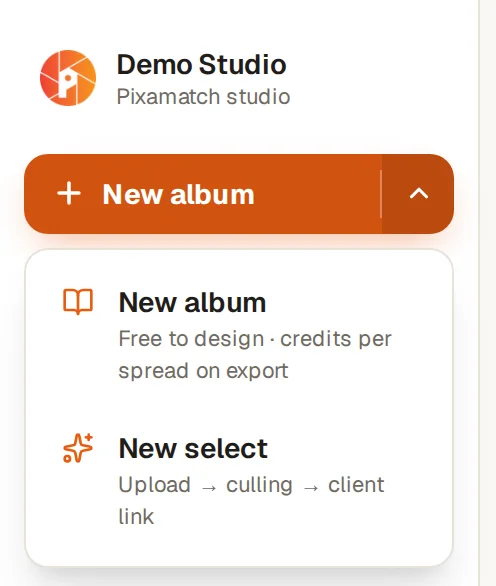
Click the arrow beside New album in the sidebar and choose New select (on a phone, tap New, then New select). Type a Name, for example "Priya & Arjun — Wedding", and press Create select.
Selects come with your Pixamatch plan. A new account starts with a 7-day free trial with room for 2,000 photos (see Plans and storage).
2. Upload the shoot
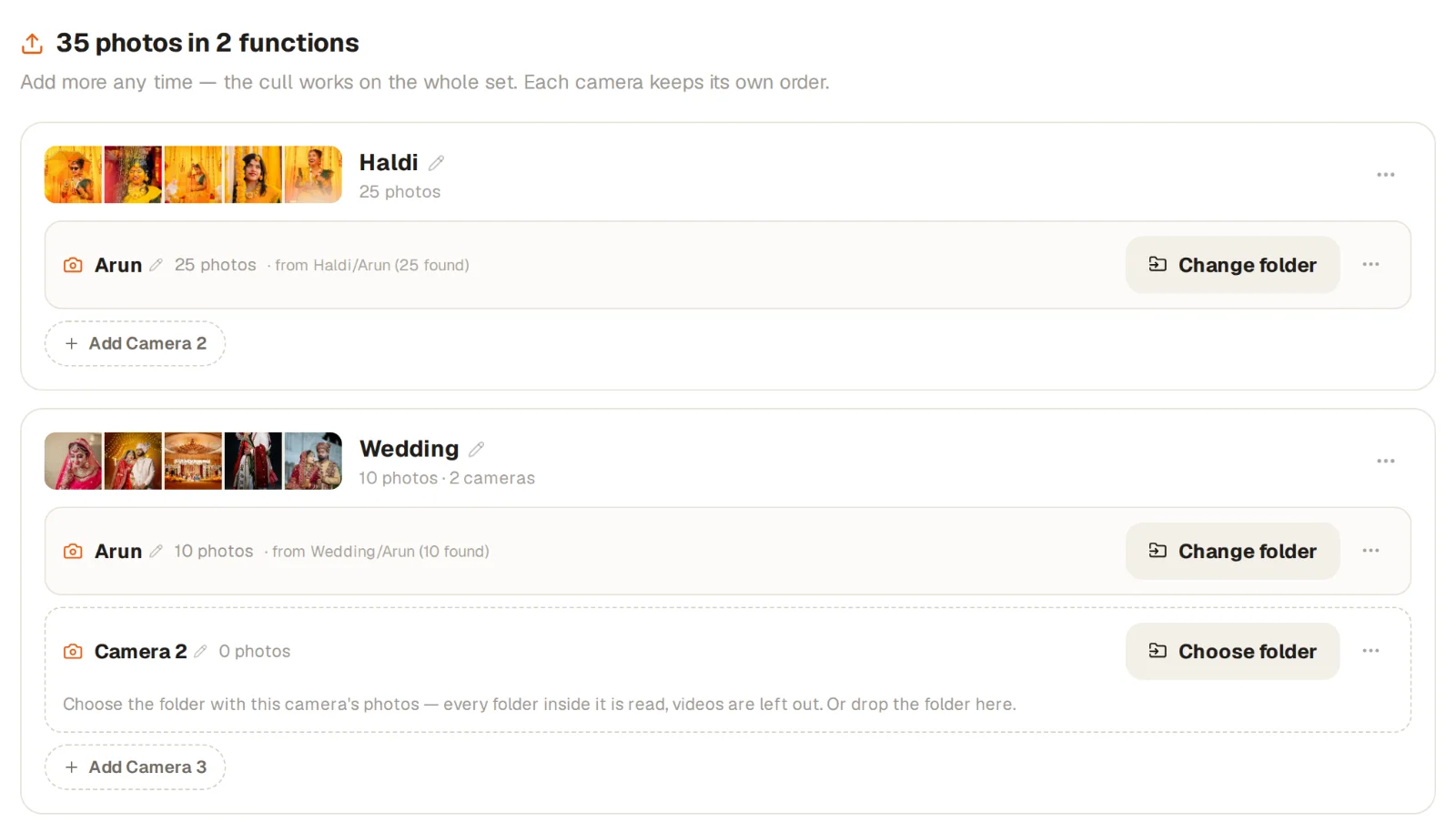
The select opens on Upload and asks What did you shoot? Click each event of the shoot, for example Haldi and Wedding. Each one becomes a function with a Camera 1 row.
- Press Choose folder on Camera 1 and pick the folder that holds that camera's photos, on your computer, an external drive or a NAS. Everything inside it uploads.
- Shot with a second photographer? Press Add Camera 2 and choose their folder. Each camera keeps its own time order; Pixamatch never mixes two cameras' clocks.
- Do the same for the next function.
Uploads keep going while you move around the studio. JPEG and RAW files are both accepted (HEIC and Panasonic .rw2 are not; export those as JPEG first). Culling opens by itself once every photo is in, usually a minute or two after the upload ends.
3. Choose what goes into the link
The Culling step asks "What goes into the link?":
- Keep all photos sends everything. Similar frames are stacked, so your client decides one moment at a time. Pixamatch has already set a Recommended grouping; you can press Generate link straight away.
- Remove bad photos drops blurred, soft and duplicate frames, and shows you the kept photos to review before you send. Nothing is deleted: the removed photos stay in the select.
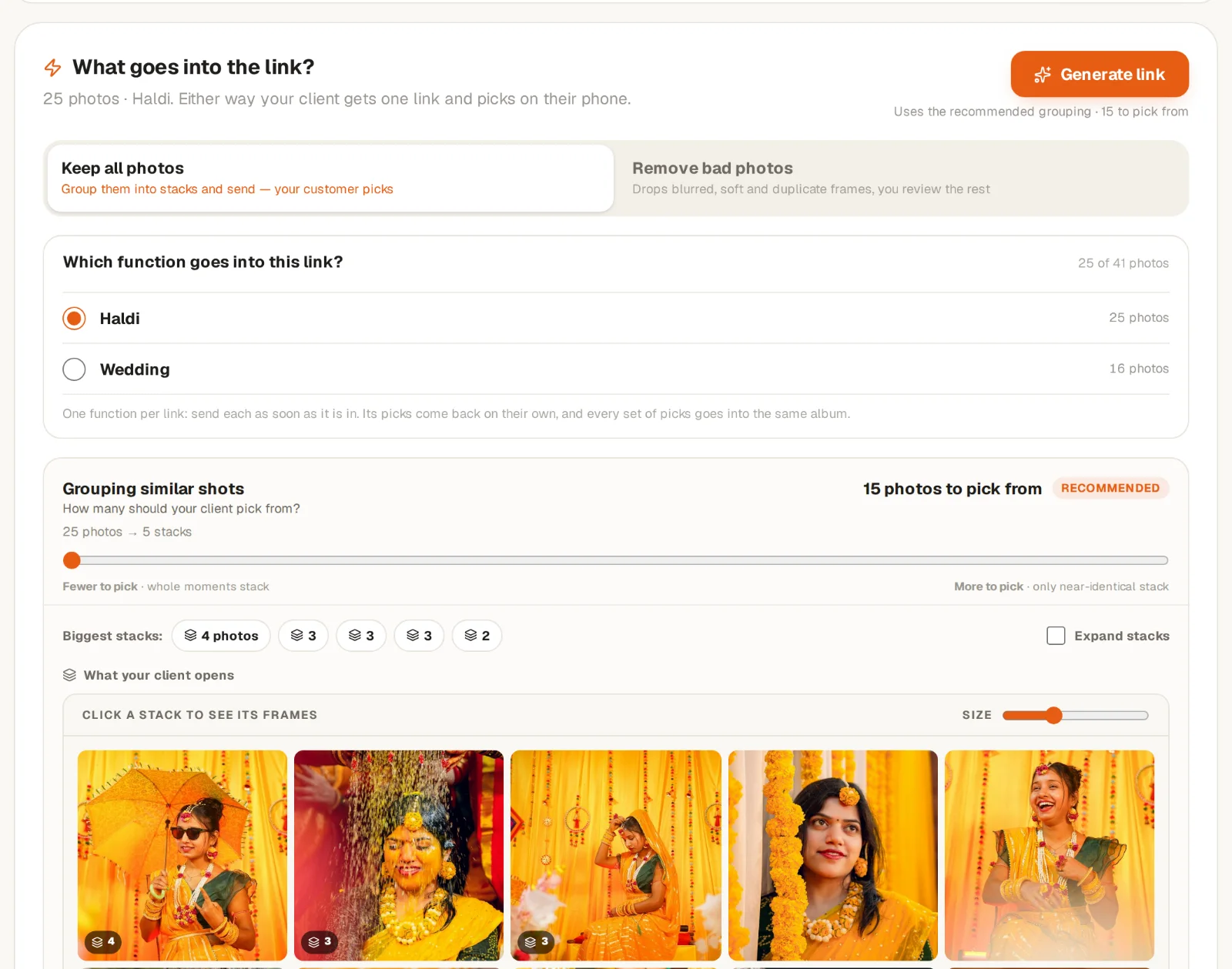
A select with two or more functions sends one function per link: choose it under Which function goes into this link?, and send the next one the same way once it is in. Each link can also limit how many your client can pick, for example 120 from the Wedding.
4. Send the link
The link card appears on the Client link step. Press WhatsApp to open WhatsApp with the link and its PIN ready to send, or use Copy link or QR.
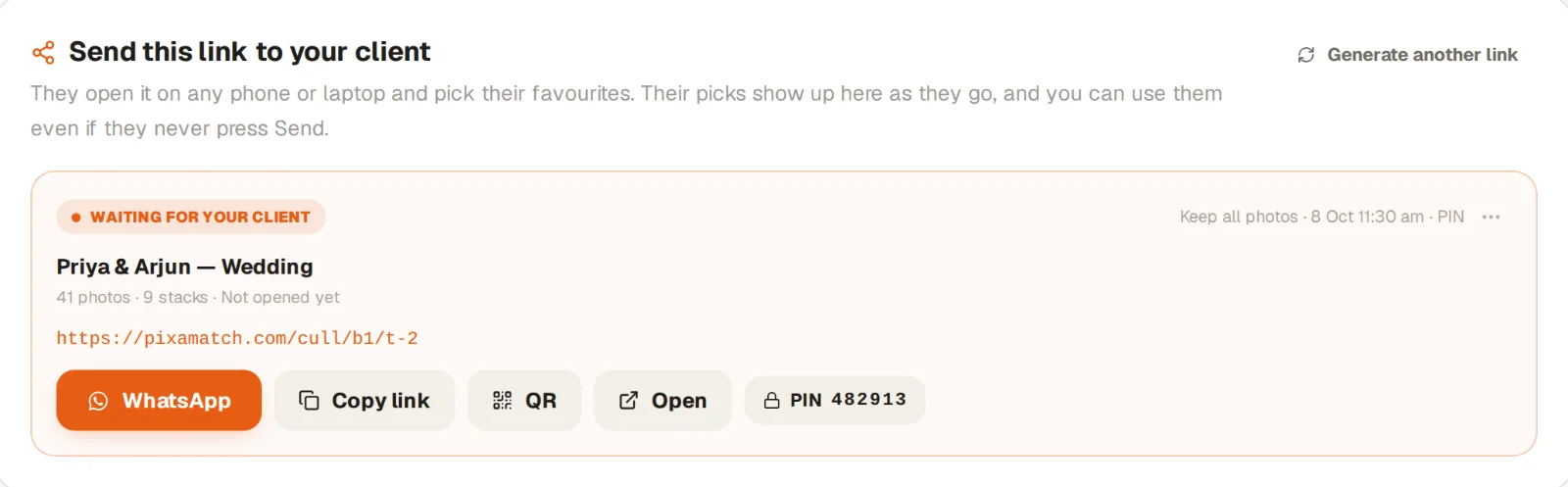
New links are protected with a 6-digit PIN. Your client types it once; WhatsApp sends it with the link.
5. Your client picks, you get the files
Your client needs no app and no account. They open the link on their phone, tap ♥ on the photos they love (★ for a favourite), and press Send. Every photo has a number, so two people on a call can say "take 57".
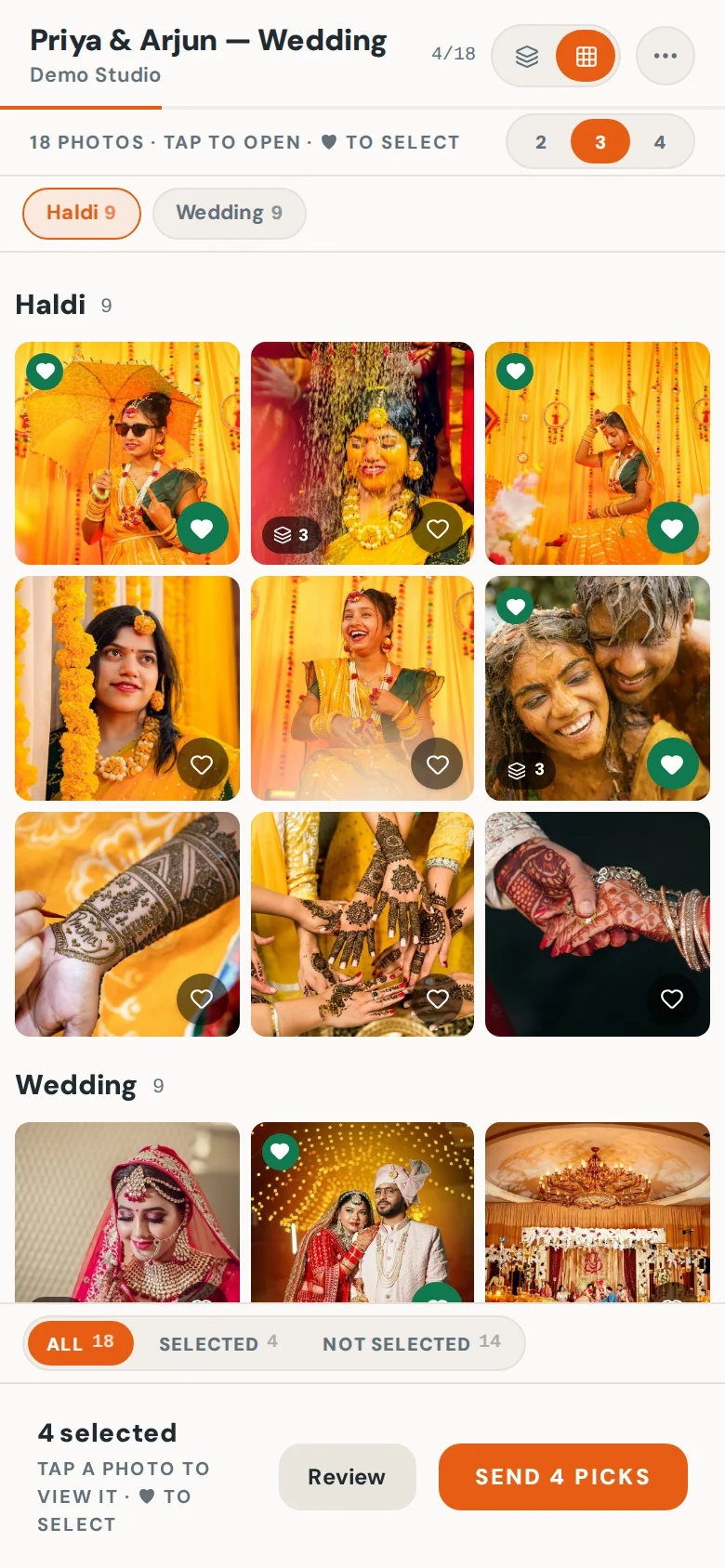
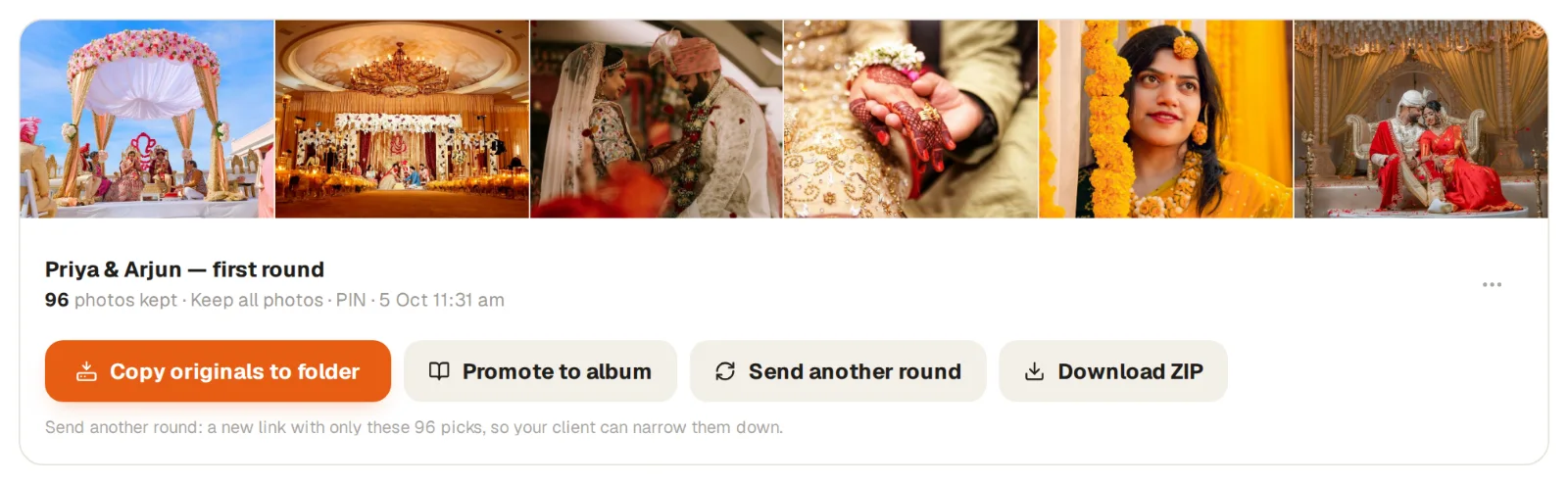
Their picks show under the link as they go. Once sent, a picks card gives you:
- Download ZIP of the kept photos.
- Copy originals to folder, which finds the RAW and JPEG files of the picks on your computer and copies them into a new folder.
- Lightroom XMP: 4 stars for a pick, 5 for a favourite, so Lightroom's filter shows them alone.
- Send another round when the client should narrow the picks down again.
Good to know
- Clients often stop without pressing Send. Use these picks sends the round for them.
- Pressed Send too early? ⋯ → Reopen for client on the link opens the same link again with everything still marked.
- Nothing is ever deleted by a cull, a link or a re-run; your photos stay in the select.
Every detail of selects is in Selects and the client link. In the studio, Ask Pixie (the help chat) answers questions about your own select.
Still stuck? In the studio, ask Pixie, the help chat (Ask Pixie in the sidebar on a computer, the Pixie tab on a phone). Pixamatch answers every message.